Don't throw out that old PC yet!
A fine-tuned Windows XP PC can run quite fast even if it's seriously lacking in the memory and CPU department. Before you chuck out your PC to buy a new one, try stripping some of the rust that's built-up over the years; the results may surprise you.
It's probably your operating system that's slow, not the PC. It's software, not hardware - you know, invisible 1s and 0s held in an electric field representing your data. Your computer is still fast, but there's a ton of stuff slowing it down. There's more 1s where there should be 0s and your PC is killing itself fighting an impossible battle to burn off this fat.
We've seen Pentium II machines with 128 MB RAM run XP faster than Pentium IVs with 4x the clock speed and 4x the RAM - so what gives? This article will help you figure out why your PC is running slow and outline exact steps to fix it quickly, before throwing in the towel with a format, restore, or new PC purchase.
The Culprit - What Slows Down Your PC
Before you dive into your PC, it is absolutely critical that you determine what is slowing it down. Ignoring a bad hard drive could lead to catastrophic damage with data loss. Lack of sufficient RAM completely limits a PC's performance. Spyware and malware could be having a circus inside your OS - just like in 90%+ of other PCs online. There are other causes for PCs to run slow, but these are the most common.
The basic symptoms of a bad hard drive are: extremely slow performance, blue screen of death error screens, system errors on startup, and strange sounds coming from your PC, especially clicking sounds. If you suspect your drive is failing, shut down your PC as soon as possible. Download Hitachi's Drive Fitness Test, burn a CD to test your drive, boot off it, and run a scan to determine if it's defective. If you use a bad hard drive for too long you might suffer complete data loss. If you don't use this tool, check the Ultimate Boot CD instead -- you may find it's easier to use and it also includes memory tests.
It's possible your PC doesn't have enough RAM. The amount of RAM your PC has can be checked by hitting the Windows and Pause/Break keys at the same time. The amount is listed toward the bottom right. The same information can be accessed by right-clicking My Computer and choosing Properties.
We've seen Windows XP run with 64 MB RAM and it is not pretty. With 128 MB, an XP machine can survive basic tasks as long as there is not a lot loaded into memory. We consider 256 MB to be the absolute tolerable minimum. The jump to 512 MB will help speed up the PC considerably, especially if there is antivirus or anti-spyware software running in the background. Currently 1024 MB (or 1 gigabyte) seems to be the sweet spot, where adding more RAM doesn't seem to be cost effective for most users. However, gamers can usually benefit from the jump to 2 GB. RAM is cheap. Check your local retail ads for sales. Seriously consider upgrading if your PC has less than 512 MB. Instructions on installing RAM can be found here. Instructions are available for notebooks here.
You might avoid spyware like a flagged minefield. But if kids, friends, or PC newbies are using your PC to browse the Internet it's very likely that your PC is infected. The basic symptoms of spyware, malware, adware are: slow performance, pop-up ads, strange error messages, extra toolbars in your browser, frequent web browser crashes, and slow or completely non-functional Internet. Completely removing spyware can be a big job. If you're not up for it, you may want to pay a repair shop to complete the job for you. To remove spyware easily, here's our most recent guide. Our older guide is available here.
If all of these other things are not the problem, your PC is probably just cluttered with crap and needs a tune-up. This article covers a quick (5-15 minute) tune-up for Windows XP. The basic approach: Visual effects, Add/Remove Programs, Startup folder, temp files, registry cleaning, CCleaner, services, then defragment.
Shown below is the before and after CPU usage from a typical tune-up of this type. The PC tested here started with 42 processes using over 152 MB of memory. After the tune-up, this was dropped to 23 processes using only 63 MB of memory.
Before: | After: |
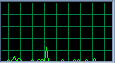 | 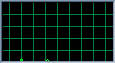 |
| To see your current CPU and memory usage, hit CTRL-ALT-DELETE and view the Performance tab. The number of processes is listed in the bottom-left corner. |
Step 1: Stripping off the Rust Begins
The visual effects, that is animations, shadows, and extra Windows XP polished interface, eat up CPU and memory (especially on older PCs). Hit the Windows and Pause/Break keys or right-click My Computer and choose Properties. Navigate to the Advanced tab, then click the first Settings box. Very slow (<500>
- Animate Windows when minimizing and maximizing
- Smooth edges of screen fonts
- Smooth-scroll list boxes
- Use drop shadows for icon labels on the desktop
Turn off your background image and you'll notice the desktop comes up slightly faster. It also (depending on the detail of the image) will give you more free memory. This can be accessed by right clicking the Desktop, choosing Properties, Desktop, and looking under Background.
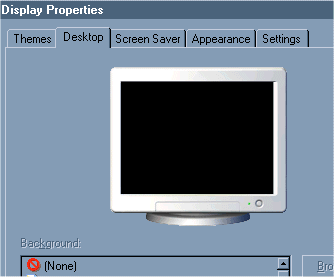
Sure, it looks plain. But how often do you see it anyway?
To further tweak the visual settings for maximum performance download Tweak UI.

No comments:
Post a Comment