Tuesday, September 25, 2007

Bypass Rapidshare download Limits and Waiting Times

Rapidshare has been an excellent tool for sharing large files. Recently users have discovered ways of bypassing the download limits and skipping the waiting time. Here are a description of these methods.

Update: Two new methods of bypassing download limits have been posted. These are more advanced and may require additional software or hardware, but you should check them out when you are done with these easier methods:

Rapidshare traces the users IP address to limit each user to a certain amount of downloading per day. To get around this, you need to show the rapidshare server a different IP address.

Here are some methods for doing this:

1. Short-Out the JavaScript:
    1. Goto the page you want to download
    2. Select FREE button
    3. In the address bar put the following: javascript:alert(c=0)
    4. Click OK
    5. Click OK to the pop-up box
    6. Enter the captcha
    7. Download Your File


2. Request a new IP address from your ISP server.
    Here's how to do it in windows:
    1. Click Start
    2. Click run
    3. In the run box type cmd.exe and click OK
    4. When the command prompt opens type the following. ENTER after each new line.
    ipconfig /flushdns
    ipconfig /release
    ipconfig /renew
    exit


    5. Erase your cookies in whatever browser you are using.
    6. Try the rapidshare download again.

    Frequently you will be assigned a new IP address when this happens. Sometime you will, sometimes you will not. If you are on a fixed IP address, this method will not work. To be honest, I do not know how to do this in linux/unix/etc. If this works for you, you may want to save the above commands into a batch file, and just run it when you need it.


3. Use a proxy with SwitchProxy and Firefox:


4. Use an anonymous service:
    Running your system through the tor network should in theory work; however, it is difficult to use and setup. Plus, you allow others to run their evil deeds through your system as well by using this system. Anonymizer 2005 is inexpensive, easy to use, but not free. Other pay services would likely work as well.


5. You can use a bookmarklet to stop your wait times:
    1. Open IE
    2. Right Click On This Link
    3. Select Add to Favorites
    4. Select Yes to the warning that the bookmark may be unsafe.
    5. Name it "RapidShare No Wait"
    6. Click on the Links folder (if you want to display it in your IE toolbar)
    7. Click OK
    8. You may need to close and reopen IE to see it
    9. Goto rapidshare and click the bookmarklet when you are forced to wait

How to REALLY Erase that old Hard Drive

Erasing and Formatting - Just Not Secure Enough
Simply erasing all the data on your hard drive and formatting it is not enough security. You can spend hours going through your hard drive and deleting all the files and documents you want, but using the delete key on your keyboard in Windows basically only removes the shortcuts to the files making them invisible to users. Deleted files still reside on the hard drive and a quick Google search will show many options for system recovery software will allow anyone to reinstate that data.

Formatting the hard drive is a bit more secure than simply erasing the files. Formatting a disk does not erase the data on the disk, only the address tables. It makes it much more difficult to recover the files. However a computer specialist would be able to recover most or all the data that was on the disk before the reformat. For those who accidentally reformat a hard disk, being able to recover most or all the data that was on the disk is a good thing. However, if you're preparing a system for retirement to charity or any other organization, this obviously makes you more vulnerable to data theft.

For some businesses and individual users, a disk format may be something you consider secure enough, depending, of course, on the type of data and information you saved to your computer. As long as people understand that formatting is not a 100 percent secure way to completely remove all data from your computer, then they are able to make the choice between formatting and even more secure methods. If you have decided a disk format is a good choice, at the very least to do a full format rather than a quick format.

Disk Wiping Options (aka. Data Dump)
Even more secure than reformatting is a process called disk wiping. The term disk wiping is not only used in reference to hard drives but any storage device such as CDs, RAIDs, thumb drives and others. Disk wiping is a secure method of ensuring that data, including company and individually licensed software on your computer and storage devices is irrecoverably deleted before recycling or donating the equipment. Because previously stored data can be brought back with the right software and applications, the disk wiping process will actually overwrite your entire hard drive with data, several times. Once you format you'll find it all but impossible to retrieve the data which was on the drive before the overwrite.

While disk wiping algorithms differ from product to product, they all will generally write the entire disk with a number (zero or one), then a reformat will be needed. The more times the disk is overwritten and formatted the more secure the disk wipe is, but the trade-off is the extra time to perform additional rewrites. Disk wipe applications will typically overwrite the master boot record, partition table, and every sector of the hard drive.

The government standard (DoD 5220.22-M ), considered a medium security level, specifies three iterations to completely overwrite a hard drive six times. Each iteration makes two write-passes over the entire drive; the first pass inscribes ones (1) over the drive surface and the second inscribes zeros (0) onto the surface. After the third iteration, a government designated code of 246 is written across the drive, then it is verified by a final pass that uses a read-verify process.

There are a variety of products available for different operating systems that you can purchase, or freely downloaded online to perform more secure disk wipes. If time to perform the disk wipe is a consideration, there are also tech security companies who offer disk wipe services.

Make XP Run like NEW

Don't throw out that old PC yet!

A fine-tuned Windows XP PC can run quite fast even if it's seriously lacking in the memory and CPU department. Before you chuck out your PC to buy a new one, try stripping some of the rust that's built-up over the years; the results may surprise you.

It's probably your operating system that's slow, not the PC. It's software, not hardware - you know, invisible 1s and 0s held in an electric field representing your data. Your computer is still fast, but there's a ton of stuff slowing it down. There's more 1s where there should be 0s and your PC is killing itself fighting an impossible battle to burn off this fat.

We've seen Pentium II machines with 128 MB RAM run XP faster than Pentium IVs with 4x the clock speed and 4x the RAM - so what gives? This article will help you figure out why your PC is running slow and outline exact steps to fix it quickly, before throwing in the towel with a format, restore, or new PC purchase.

The Culprit - What Slows Down Your PC

Before you dive into your PC, it is absolutely critical that you determine what is slowing it down. Ignoring a bad hard drive could lead to catastrophic damage with data loss. Lack of sufficient RAM completely limits a PC's performance. Spyware and malware could be having a circus inside your OS - just like in 90%+ of other PCs online. There are other causes for PCs to run slow, but these are the most common.

The basic symptoms of a bad hard drive are: extremely slow performance, blue screen of death error screens, system errors on startup, and strange sounds coming from your PC, especially clicking sounds. If you suspect your drive is failing, shut down your PC as soon as possible. Download Hitachi's Drive Fitness Test, burn a CD to test your drive, boot off it, and run a scan to determine if it's defective. If you use a bad hard drive for too long you might suffer complete data loss. If you don't use this tool, check the Ultimate Boot CD instead -- you may find it's easier to use and it also includes memory tests.

It's possible your PC doesn't have enough RAM. The amount of RAM your PC has can be checked by hitting the Windows and Pause/Break keys at the same time. The amount is listed toward the bottom right. The same information can be accessed by right-clicking My Computer and choosing Properties.

We've seen Windows XP run with 64 MB RAM and it is not pretty. With 128 MB, an XP machine can survive basic tasks as long as there is not a lot loaded into memory. We consider 256 MB to be the absolute tolerable minimum. The jump to 512 MB will help speed up the PC considerably, especially if there is antivirus or anti-spyware software running in the background. Currently 1024 MB (or 1 gigabyte) seems to be the sweet spot, where adding more RAM doesn't seem to be cost effective for most users. However, gamers can usually benefit from the jump to 2 GB. RAM is cheap. Check your local retail ads for sales. Seriously consider upgrading if your PC has less than 512 MB. Instructions on installing RAM can be found here. Instructions are available for notebooks here.

You might avoid spyware like a flagged minefield. But if kids, friends, or PC newbies are using your PC to browse the Internet it's very likely that your PC is infected. The basic symptoms of spyware, malware, adware are: slow performance, pop-up ads, strange error messages, extra toolbars in your browser, frequent web browser crashes, and slow or completely non-functional Internet. Completely removing spyware can be a big job. If you're not up for it, you may want to pay a repair shop to complete the job for you. To remove spyware easily, here's our most recent guide. Our older guide is available here.

If all of these other things are not the problem, your PC is probably just cluttered with crap and needs a tune-up. This article covers a quick (5-15 minute) tune-up for Windows XP. The basic approach: Visual effects, Add/Remove Programs, Startup folder, temp files, registry cleaning, CCleaner, services, then defragment.

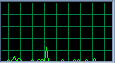
Shown below is the before and after CPU usage from a typical tune-up of this type. The PC tested here started with 42 processes using over 152 MB of memory. After the tune-up, this was dropped to 23 processes using only 63 MB of memory.

Before:

After:

before After

To see your current CPU and memory usage, hit CTRL-ALT-DELETE and view the Performance tab. The number of processes is listed in the bottom-left corner.

Step 1: Stripping off the Rust Begins

The visual effects, that is animations, shadows, and extra Windows XP polished interface, eat up CPU and memory (especially on older PCs). Hit the Windows and Pause/Break keys or right-click My Computer and choose Properties. Navigate to the Advanced tab, then click the first Settings box. Very slow (<500>

  • Animate Windows when minimizing and maximizing
  • Smooth edges of screen fonts
  • Smooth-scroll list boxes
  • Use drop shadows for icon labels on the desktop
If you plan to use Common tasks (such as the built-in Windows Explorer CD Burning Utility, you may want to leave Use common tasks in folders enabled. Read through this list and determine what else you may want. Test the settings using the Apply button before deciding you're OK with changes.

Turn off your background image and you'll notice the desktop comes up slightly faster. It also (depending on the detail of the image) will give you more free memory. This can be accessed by right clicking the Desktop, choosing Properties, Desktop, and looking under Background.
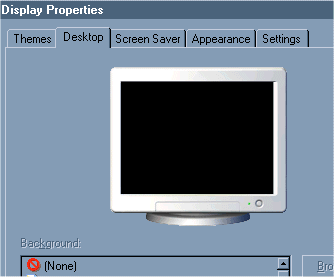
no background
Sure, it looks plain. But how often do you see it anyway?

To further tweak the visual settings for maximum performance download Tweak UI.